How to Set Up PPSSPP on Android: Step-by-Step Guide for Beginners
PPSSPP is the free, open-source PSP emulator that lets you play real PSP games like GTA: Liberty City Stories and GTA: Vice City Stories on your Android phone. Setup takes about 15 minutes, requires no BIOS file, and needs no technical skills. This guide walks you through every step, from installing the emulator to getting your first game running smoothly.
One important note before we start: PPSSPP does not include games. It only emulates the PSP hardware where you supply your own legally obtained game files (ISO or CSO format). We never link to pirated game downloads on this site. The only download link in this guide is the official PPSSPP website, which is the safe place to get the emulator itself.
| Detail | Info |
|---|---|
| Topic | Setting up PPSSPP on Android for beginners |
| Emulator | PPSSPP (free, open source) |
| Time needed | About 15 minutes |
| Difficulty | Beginner — no PC or technical skills required |
| BIOS needed? | No — PPSSPP works without one |
Step 1: Install PPSSPP From a Safe Source
Get PPSSPP from one of two places: the Google Play Store (search “PPSSPP” — it’s the free app by Henrik Rydgård) or the emulator’s official site, which hosts the Android APK directly. Both are safe.
There is also a paid “PPSSPP Gold” version on the Play Store. It is identical in features buying it is purely a way to support the developer. The free version plays every game the same way, so start with free.
Step 2: Understand What PPSSPP Needs (and Doesn’t)
Many emulator guides tell you to hunt for a BIOS file. PPSSPP is different: it does not need a PSP BIOS at all. Its developers wrote a clean-room replacement for the system software, so the emulator runs games straight out of the box. If a site tells you to download a “PSP BIOS” for PPSSPP, it’s either outdated advice or a lure to get you to download something.
What PPSSPP does need is game files in ISO or CSO format — digital copies of PSP game discs. You must source these legally yourself, for example by dumping discs you own. This site does not provide game downloads, and any site offering “GTA 5 PSP ISO” files is lying: GTA 5, GTA 4, and GTA 3 were never released on PSP. The only genuine PSP GTA games are Liberty City Stories (2005), Vice City Stories (2006), and Chinatown Wars (2009) — see our truth about GTA 5 on PPSSPP for the full myth-busting breakdown.
Step 3: Put Your Game Files Where PPSSPP Can Find Them
Create a folder on your phone’s storage — for example Internal storage/PSP/Games — and place your ISO or CSO files inside it. Using one dedicated folder keeps things tidy, especially as your collection grows. PPSSPP scans for games automatically, but pointing it at a single folder is faster than letting it search your whole phone.
File sizes vary: most PSP games are 500 MB to 1.5 GB. CSO files are compressed ISOs — they take less space but can cause slightly longer loading times in some games. For GTA titles, ISO is the safer choice if you have the storage.
Step 4: Load Your First Game
Open PPSSPP and tap Games, then navigate to the folder where you put your game files. Tap the game, and it should boot straight into the title screen. If a game shows a black screen or crashes immediately, don’t panic — try changing the backend (Vulkan vs. OpenGL) in the graphics settings, which fixes most boot issues on specific phone chipsets.
The first load is also when PPSSPP builds its shader cache, so you may notice brief stuttering in the first minute of gameplay. This is normal and goes away as the cache fills in.
Step 5: Set Up the On-Screen Controls
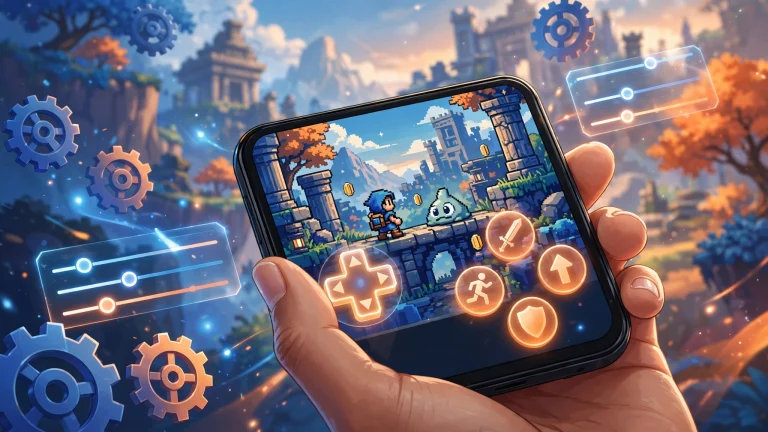
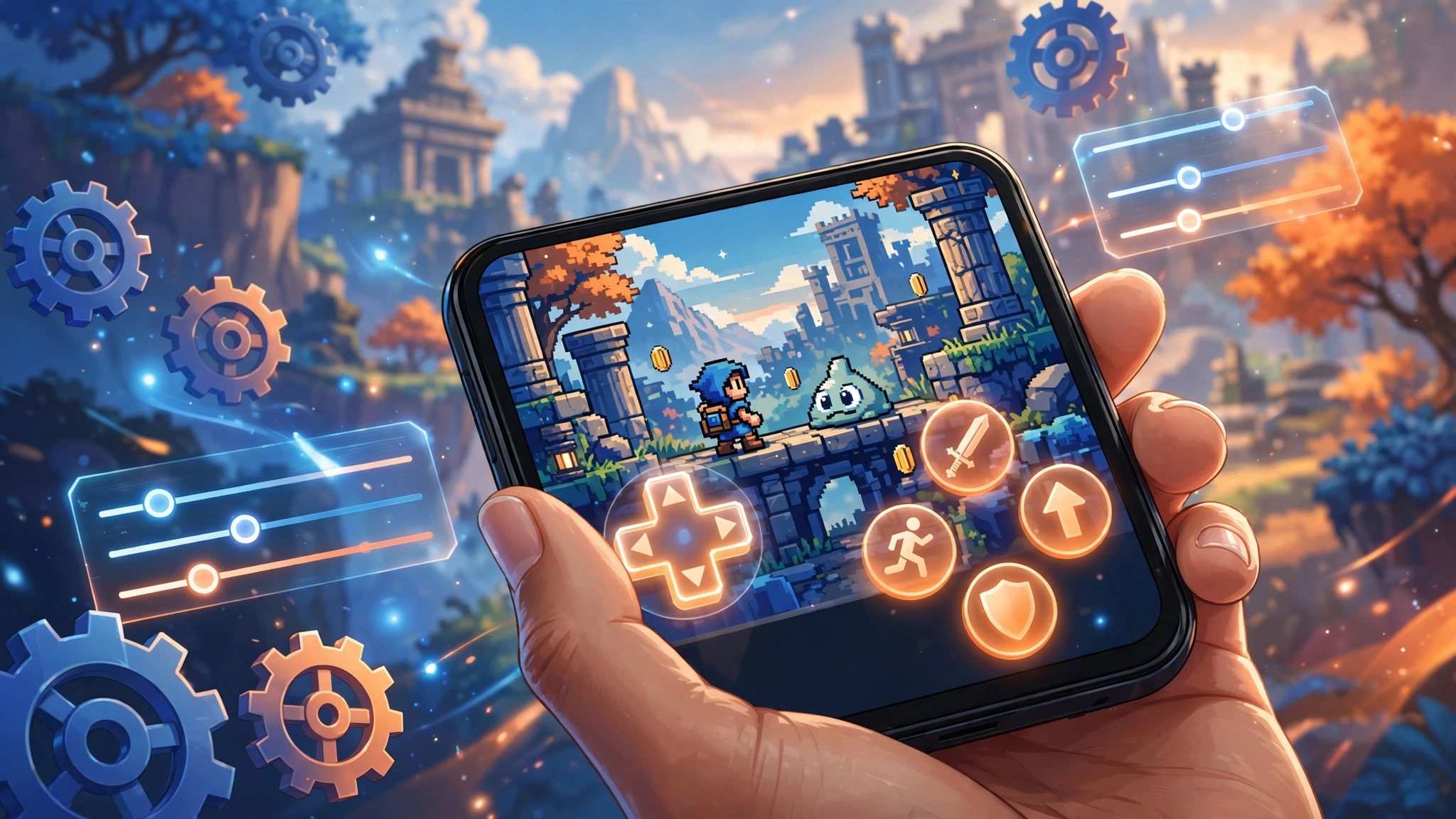
PPSSPP shows touch controls by default: a D-pad, analog stick, and the PSP’s face buttons overlaid on the screen. Go to Settings → Controls → Touch control layout to move buttons around, resize them, or change their transparency. Spend five minutes arranging them before judging a game — the default layout suits nobody perfectly, and a layout matched to your thumb reach makes a huge difference in action games.
If you have a Bluetooth controller (Xbox, PlayStation, or any generic gamepad), pair it with your phone and PPSSPP will detect it automatically. Go to Settings → Controls → Control mapping to remap buttons if needed. A physical controller is the single biggest upgrade you can make to PSP emulation on a phone.
Step 6: Tune the Graphics Settings
PPSSPP can render PSP games at much higher resolution than the original hardware, which makes old games look surprisingly good on modern phone screens. Here are the settings that matter most:
- Rendering resolution: Start at 2x PSP. If the game runs smoothly, try 3x or 4x. On budget phones, drop to 1x PSP for maximum speed.
- Backend: Vulkan is fastest on most modern phones; OpenGL is the fallback if a game glitches under Vulkan.
- Frameskipping: Leave off unless a game is too slow — it trades smoothness for speed.
- Texture filtering and upscaling: Nice visual upgrades on powerful phones; turn off first if you need more speed.
The golden rule: prioritize a stable 30 or 60 fps over prettier graphics. A smooth game at 2x resolution always beats a stuttering one at 5x. For GTA titles specifically, our guides to Vice City on PPSSPP and the real PSP GTA games include per-game notes.
Step 7: Learn Save States (and In-Game Saves)
PPSSPP offers two ways to save. In-game saves work exactly like on a real PSP — the game writes to a virtual memory stick stored on your phone. Save states are the emulator’s superpower: at any moment you can freeze the entire game into a slot and reload it instantly later.
To use them: during gameplay, open the PPSSPP menu (tap the menu button or swipe), choose Save state, and pick a slot. To reload, choose Load state. Use save states before difficult missions or boss fights, but also keep regular in-game saves — save states are tied to the emulator version and can occasionally break after an app update, while in-game saves are far more durable.
Recommended Settings Summary
| Setting | Budget phones | Mid-range phones |
|---|---|---|
| Rendering resolution | 1x–2x PSP | 3x–4x PSP |
| Backend | OpenGL (if Vulkan glitches) | Vulkan |
| Frameskipping | Auto (1) if needed | Off |
| Texture upscaling | Off | On (2x–4x) |
| VSync / 60 fps | Off for speed | On for smoothness |
Common Beginner Problems and Fixes
- Game won’t boot (black screen): Switch the graphics backend between Vulkan and OpenGL, then retry.
- Slow gameplay: Lower rendering resolution to 1x PSP and turn off texture upscaling.
- No sound or crackling audio: In audio settings, try a different audio backend or enable “audio sync” options.
- Controls feel wrong: Rearrange the touch layout or connect a Bluetooth controller.
- “File not found” for a game: Make sure the file is a real ISO/CSO in your games folder — incomplete downloads won’t boot.
FAQ
Is PPSSPP free and legal?
Yes. PPSSPP is free, open-source software, and emulators are legal. You need to supply your own legally obtained game files — the emulator doesn’t include any games.
Do I need a BIOS file for PPSSPP?
No. PPSSPP includes its own replacement for the PSP system software, so no BIOS download is needed. Any guide telling you otherwise is outdated.
Can my budget phone run PPSSPP?
Almost certainly yes. PPSSPP runs well even on modest hardware — most phones from the last several years handle PSP games at 1x–2x resolution smoothly. Lower the rendering resolution if a game feels slow.
Why won’t my ISO file load?
The most common causes are an incomplete or corrupted download, a file in the wrong format (PPSSPP needs ISO/CSO, not zip/rar — extract archives first), or a graphics backend incompatibility. Check the file, extract it, and try switching backends.
Can I play multiplayer on PPSSPP?
PPSSPP supports ad-hoc multiplayer over local Wi-Fi between devices running the emulator, but setup is fiddly and not all games cooperate. For beginners, treat it as a single-player experience first.
Does PPSSPP work on iPhone too?
Yes, PPSSPP is available for iOS as well, but this guide covers Android. The settings and concepts are nearly identical across platforms.
Conclusion
That’s the whole setup: install from the Play Store or ppsspp.org, place your legally obtained ISOs in one folder, load a game, arrange your controls, and tune resolution for smooth performance. No BIOS, no PC, no complicated steps.
Once you’re comfortable, explore per-game settings for the GTA titles, and remember that any site promising PSP versions of games that never existed on PSP is selling you a myth, not a game.