How to Transfer PSP Game Saves to PPSSPP (Without Losing Progress)
Yes, you can transfer your PSP game saves to PPSSPP without losing progress — your missions, unlocked areas, and collectibles all carry over. The trick is knowing that PPSSPP has two different kinds of saves, and only one of them transfers cleanly between devices. Copy the right folder, paste it in the right place, and your GTA progress (or any PSP game’s progress) will be waiting for you.
This guide covers all three transfer methods: from a real PSP to PPSSPP via USB, from one phone to another, and from PPSSPP on PC to PPSSPP on Android. It also explains the mistakes that corrupt or “lose” saves, so you can avoid them.
| Detail | Info |
|---|---|
| What this does | Moves PSP game saves into PPSSPP (or between PPSSPP installs) with progress intact |
| Works for | All PSP games, including GTA: Liberty City Stories, Vice City Stories, and Chinatown Wars |
| What you need | A USB cable (for real-PSP transfers) or a file manager app; PPSSPP from ppsspp.org |
| Time needed | 5–10 minutes |
| Difficulty | Easy — it is just copying folders |
The Two Types of Saves (Read This First)
PPSSPP keeps two completely separate save systems, and confusing them is the number one reason people “lose” progress.
1. In-game memory-stick saves (SAVEDATA). These are the saves you make from inside the game — at a safehouse in GTA, for example. The real PSP stored them on its memory stick in a folder called PSP/SAVEDATA, and PPSSPP does exactly the same thing. Each game gets its own folder named after its game ID (for example, ULUS10041 for the US version of GTA: Liberty City Stories). These are the saves you transfer. They work on a real PSP, on PPSSPP for Android, on PPSSPP for PC — everywhere.
2. Save states. These are instant snapshots taken through PPSSPP’s pause menu (Pause → Save State). They freeze the entire emulator at that exact moment. Save states are convenient, but they are not portable: a save state made on one PPSSPP version often refuses to load on another version, and a real PSP cannot read them at all. Never rely on save states as your only copy of progress — always also save inside the game.
The rule is simple: transfer SAVEDATA folders, not save states.
Method 1: Transfer Saves from a Real PSP to PPSSPP (USB)
If you played on a real PSP back in the day and still have the memory stick, your saves are sitting in PSP/SAVEDATA on that stick. Here is how to move them.
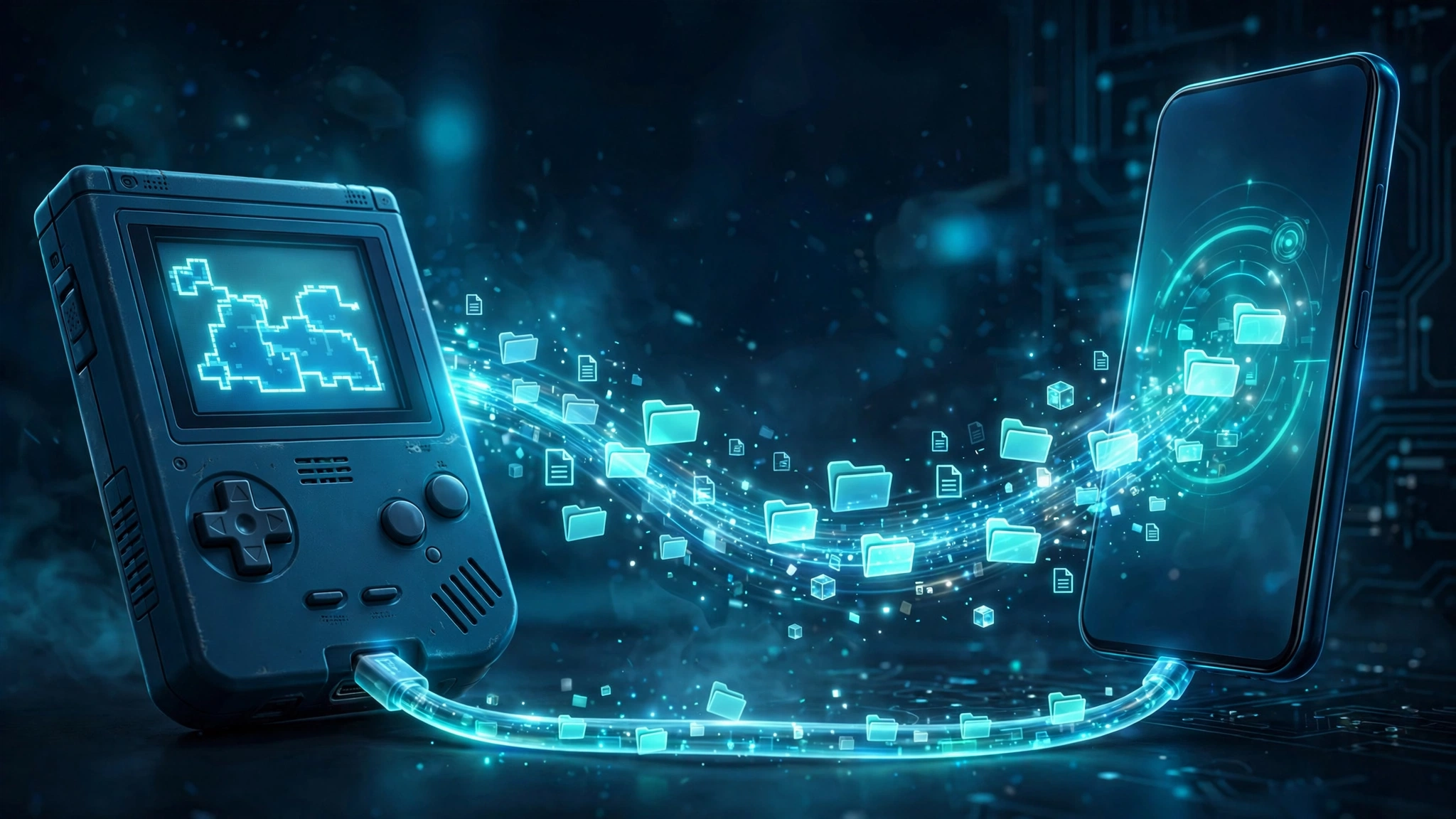
- Connect your PSP to your computer with a USB cable, then on the PSP go to Settings → USB Connection. The memory stick appears as a drive on your computer.
- Open the PSP/SAVEDATA folder on the memory stick. You will see one folder per game, named by game ID (ULUS…, ULES…, ULJM…, etc.).
- Copy the folder(s) for your game(s) to your computer. For GTA: Liberty City Stories (US) it is ULUS10041; Vice City Stories (US) is ULUS10160; Chinatown Wars (US) is ULUS10418. EU versions start with ULES instead — copy whichever matches the version you will play.
- Find PPSSPP’s SAVEDATA folder on your target device:
- Android: Internal storage → PSP → SAVEDATA (sometimes under Android/data/org.ppsspp.ppsspp/files/PSP/SAVEDATA on newer Android versions)
- PC (Windows): Documents → PPSSPP → PSP → SAVEDATA (or the memstick/PSP/SAVEDATA folder next to the PPSSPP executable)
- Paste the copied game folder(s) into PPSSPP’s SAVEDATA folder. Do not rename anything — the folder name is how the game finds its save.
- Close and reopen PPSSPP (or restart the game), then load your game and use its in-game Load Game menu. Your progress will be there.
Method 2: Copy Saves Between Two Phones (or Phone ↔ PC)
Moving from an old phone to a new one, or from PPSSPP on PC to PPSSPP on Android, works the same way — because PPSSPP uses the identical SAVEDATA folder structure on every platform.
- On the source device, open PPSSPP’s PSP/SAVEDATA folder with a file manager and copy your game’s folder.
- Move the copied folder to the new device — via USB cable, Bluetooth, Google Drive, or any file-sharing method you like.
- On the target device, paste the folder into PPSSPP’s PSP/SAVEDATA folder.
- Restart PPSSPP and load the save from the game’s in-game load menu.
Tip: copy the entire SAVEDATA folder if you play several games — it is small (usually a few megabytes total) and you will never miss one.
Method 3: Moving Save States (Only If You Must)
Save states live in PSP/PPSSPP_STATE next to the SAVEDATA folder. You can copy these between devices, but only treat them as a temporary bridge:
- Both devices must run the same PPSSPP version (ideally the exact same build), or the state may fail to load.
- Load the save state, then immediately save inside the game to create a proper SAVEDATA save. From that point on, rely on the in-game save.
- Never send someone else your save state expecting it to work on their different PPSSPP build — it usually will not.
Common Problems (and Fixes)
| Problem | Cause | Fix |
|---|---|---|
| Save does not appear in the load menu | Pasted into the wrong folder, or PPSSPP was still running | Confirm the path is PSP/SAVEDATA (not PPSSPP_STATE), then fully close and reopen PPSSPP |
| “Corrupted data” message | Folder renamed, or files copied incompletely | Copy again without renaming anything; make sure every file inside the folder transferred |
| Save loads but progress is old | You loaded a save state instead of the in-game save | Use the game’s own Load menu, not PPSSPP’s Load State |
| US save will not load on EU game version | Save folders are region-locked by game ID (ULUS vs ULES) | Play the same region version as the save, or start fresh on the new region |
| Save state will not load after updating PPSSPP | Save states break across emulator versions | This is why in-game saves matter — load your SAVEDATA save instead |
GTA-Specific Notes
GTA games on PSP save at safehouses (the floppy-disk icon). Before transferring, save at a safehouse in-game first so your latest progress is written to SAVEDATA — a save state alone is not enough. This applies to Vice City Stories, Liberty City Stories, and Chinatown Wars equally.
Once your saves are moved, make sure the game actually runs smoothly on your new device — our best PPSSPP settings guide for low-end phones walks through the exact graphics options for lag-free GTA gameplay. And if you are setting PPSSPP up for the first time, start with our beginner’s setup guide.
Frequently Asked Questions
Where is the PPSSPP save folder on Android?
Internal storage → PSP → SAVEDATA. On Android 11 and newer, scoped storage may place it under Android/data/org.ppsspp.ppsspp/files/PSP/SAVEDATA instead. Use a file manager that can browse those paths, or connect the phone to a PC.
Can I transfer saves from PPSSPP back to a real PSP?
Yes — it works in reverse. Copy the game’s folder from PPSSPP’s PSP/SAVEDATA to the memory stick’s PSP/SAVEDATA via USB, and the real PSP will read it, as long as the game region matches.
Do I need the same game region for the save to work?
Yes. A US (ULUS) save will not load on the European (ULES) or Japanese (ULJM) version of the same game, on PSP or PPSSPP. Match the region of your game file to the region of your save.
Will my save still work if I update PPSSPP?
In-game SAVEDATA saves: yes, always. They are just files the game itself reads, and updates never break them. Save states: often not — they are tied to the emulator version. Update freely, but keep in-game saves as your real progress.
Can I download someone else’s GTA save file and use it?
Technically a SAVEDATA folder from the same game region will load. But only take save files from sources you trust — a malicious file disguised as a save is a classic way to spread malware. Never download “save files” from sites that also offer pirated game downloads.
How do I back up my saves so I never lose them?
Copy the whole PSP/SAVEDATA folder to Google Drive, a PC, or an SD card every few weeks. It is tiny, and it is the only backup you need. Pair that with our performance guide so a new phone runs your games well from day one.
Conclusion
Transferring PSP saves to PPSSPP is just folder copying: grab your game’s folder from PSP/SAVEDATA on the old device, drop it into PSP/SAVEDATA on the new one, restart PPSSPP, and load from the game’s own menu.
Remember the two golden rules: transfer in-game saves, not save states, and keep the game region matching — and you will never lose progress in a move again.